
How to Make Your Website Load Faster: A Beginner’s Guide to Website Speed
15 MIN READ
Simple, practical ways to improve your WordPress website speed—without becoming a developer or obsessing over a perfect performance score.
A beautiful website can make a wonderful first impression—but only if your visitors stick around long enough to see it.
When a website feels slow, everything becomes a little harder. Images take too long to appear. Pages hesitate when someone clicks. Mobile visitors get impatient. And even a thoughtfully designed website can start to feel frustrating.
Speed also affects more than the visitor experience. It can influence how easily people use your site and is one of the many signals Google considers when evaluating page experience.
The good news? You don’t need to become a developer—or understand every technical performance metric—to make meaningful improvements.
For most WordPress websites, a handful of practical changes can make a noticeable difference. Images, plugins, fonts, hosting, caching, and the way your site is built are some of the best places to start.
In this guide, we’ll look at what website speed actually means, how to check your site, what commonly slows WordPress websites down, and which improvements are worth focusing on first.
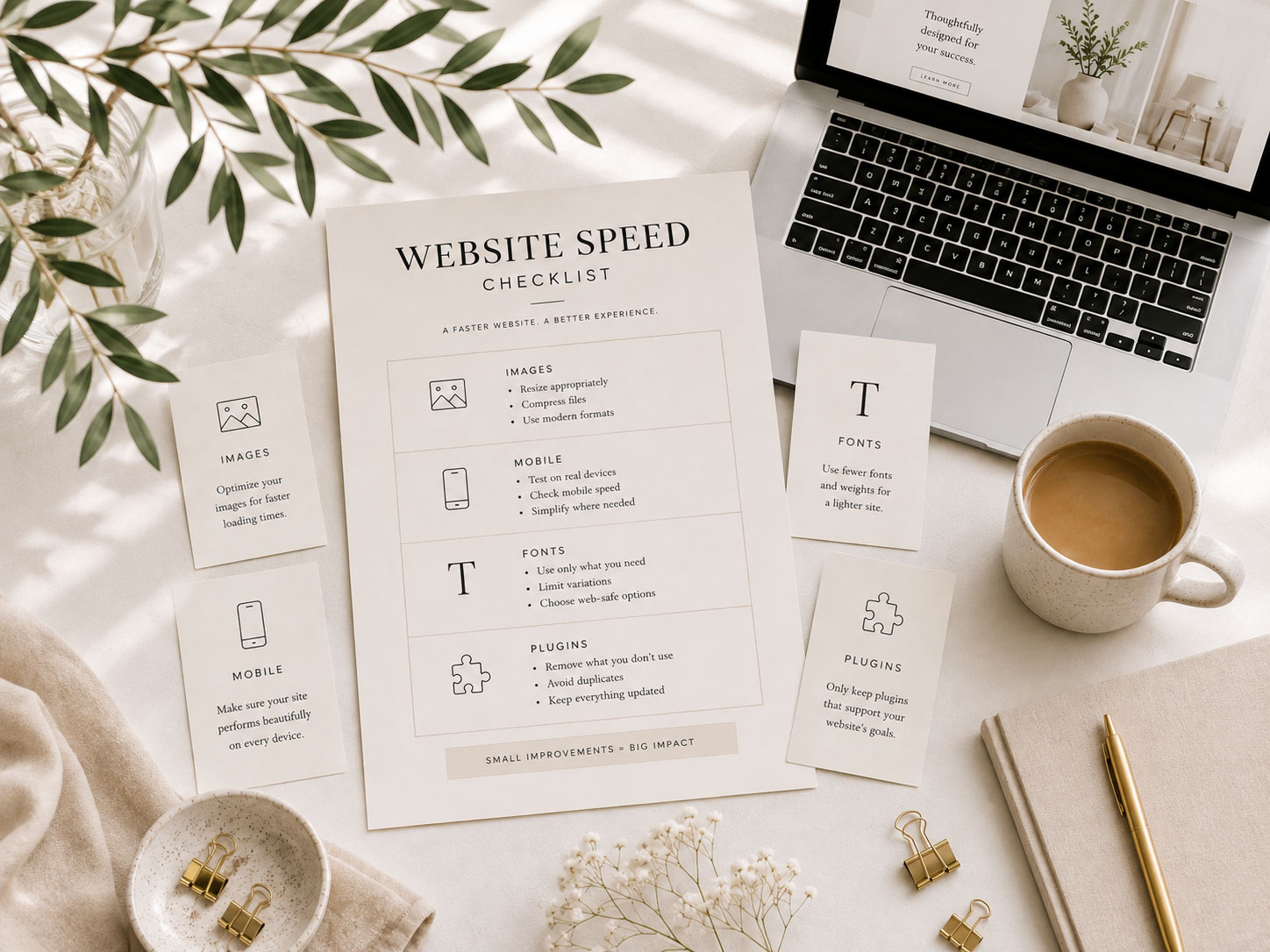
In This Article
01 What Website Speed Actually Means
02 Why Website Speed Matters
03 Test Your Website Before Changing Anything
04 Start With Your Images
05 Take a Look at Your Plugins
06 Be Thoughtful With Fonts
07 Understand Caching & Optimization
08 Don’t Forget About Your Hosting
09 Pay Attention to Mobile
10 Don’t Chase a Perfect 100
11 Your Simple Website Speed Checklist
01. What Does Website Speed Actually Mean?
IT’S MORE THAN HOW FAST THE HOMEPAGE APPEARS
When we talk about website speed, we’re really talking about how quickly and smoothly someone can begin viewing and using a page.
That isn’t always the same as asking, “How many seconds did my website take to load?”
A page can begin appearing quickly while some of its larger elements continue loading. Another might technically load quickly but shift things around while someone is trying to read or click.
This is one reason you’ll hear the term Core Web Vitals when you start researching website performance.
Google currently uses three Core Web Vitals to measure different parts of the experience:
Largest Contentful Paint (LCP) looks at how quickly the main content of the page becomes visible.
Interaction to Next Paint (INP) looks at how responsive the page feels when someone interacts with it.
Cumulative Layout Shift (CLS) looks at how visually stable the page is while it loads.
You don’t need to memorize those abbreviations—or become an expert in what each one measures.
For now, think about website performance in a much simpler way:
Does the important content appear reasonably quickly? Can someone use the page without waiting? Does everything stay where it’s supposed to be while the page loads?
That’s the experience we’re trying to improve.

Designer Tip:
Don’t let performance terminology intimidate you. Core Web Vitals are measurements of experiences you already understand: waiting, clicking, and having things unexpectedly move around.
02. Why Website Speed Matters
YOUR VISITORS FEEL IT BEFORE THEY MEASURE IT
Most people visiting your website will never run a performance test. They’ll simply know whether your website feels fast.
Someone clicks a link and expects the page to appear. They tap your menu and expect it to respond. They scroll toward an image and expect it to be there. Every unnecessary delay creates a little friction.
That matters for:
User experience. A faster website is simply more pleasant to use. Visitors can move through your content without waiting for the page to catch up with them.
Conversions. Your website has a job to do—whether that’s helping someone explore your services, shop your products, join your email list, or contact you. A slow or frustrating experience can make it harder for visitors to reach that next step.
Mobile visitors. Someone browsing from a phone may be dealing with a slower or less reliable connection than you are when checking your website from your computer. A site that seems perfectly fine on your desktop may feel very different on a phone.
SEO. Google considers page experience and Core Web Vitals within its broader search systems, but speed is only one small part of the picture.
That last point is important.
Website speed is one part of a healthy, search-friendly website. It isn’t a shortcut to the top of Google.
Making an unhelpful page load incredibly fast won’t suddenly make it the best search result. Helpful content, a well-organized website, and a good visitor experience still matter.
The goal is to create a website that’s both useful and pleasant to use.
03. Test Your Website Before Changing Anything
FIND OUT WHETHER YOU ACTUALLY HAVE A PROBLEM
Before installing another plugin or changing your website, test it. One of the easiest places to start is Google PageSpeed Insights.
Enter the URL you want to test and Google will analyze the page for both mobile and desktop. You’ll see performance information along with suggestions about things that may be affecting the page.
And this is where I want beginners to be careful.
Don’t immediately start trying to fix every warning on the screen.
Some recommendations may be useful. Others may be technical, and some may have very little practical impact on your particular website. Instead, use the report to look for patterns:
Those observations are much more useful than simply seeing a number and deciding your website is “bad.”
Test More Than Your Homepage
Your homepage isn’t your entire website. If you have an important Services page, popular blog article, product page, or landing page, test those too.
Different pages contain different images, blocks, plugins, embeds, and content, which means they may perform very differently from one another.
A single PageSpeed score does not describe the performance of your entire website.
04. Start With Your Images
THIS IS ONE OF THE EASIEST PLACES TO MAKE A DIFFERENCE
Beautiful photography is an important part of website design, but uploading enormous image files straight from a camera or stock photography website can make your pages unnecessarily heavy.
Your images generally don’t need to be dramatically larger than the size they’ll actually display on your website. For example, if an image only needs to display around 1200 pixels wide, uploading a 6000-pixel-wide version usually adds file size without providing a meaningful benefit to your visitor.
Before uploading an image to WordPress:
WordPress can create additional image sizes after upload, but that doesn’t mean we should ignore the size of the original file we’re giving it.
What About WebP?
You may have seen WebP recommended when researching website speed.
WebP is a modern image format that creates smaller files while maintaining good visual quality. WordPress supports WebP, so you can upload WebP images directly to your Media Library just as you would a JPEG or PNG.
You also don’t necessarily have to convert all of your images yourself. There are WordPress image optimization plugins that can automatically create WebP versions of the images you upload and serve them to visitors when appropriate. Some hosting companies and CDNs also offer image optimization features that may handle this for you automatically.
Before choosing an automatic WebP solution, check what your hosting provider supports and whether image optimization is already included with your hosting plan. You may already have this feature available without adding another plugin.
You don’t need to convert every image on your computer manually before you can build a fast website. The bigger lesson is simply this:
Don’t make your visitor download more image data than they need.
Don’t Sacrifice Your Photography
Optimization does not mean making your images blurry.
Especially for photographers, designers, bloggers, shops, and other visual businesses, your imagery is part of the experience. Compressing an image so aggressively that it looks noticeably poor isn’t a worthwhile tradeoff just to shave a little more from its file size.
We’re looking for the balance between beautiful enough to represent your brand and optimized enough to load efficiently.
Designer Tip:
If you’re looking for the first thing to clean up on an image-heavy website, start with the largest images on your most important pages. You don’t necessarily need to rebuild your entire Media Library in one afternoon.
05. Take a Look at Your Plugins
MORE ISN’T ALWAYS BETTER
Plugins are one of the reasons WordPress is so flexible. They can add forms, shops, galleries, social feeds, SEO tools, analytics, backups, security features, and almost anything else you might need.
But every plugin adds something to your website. Depending on what it does, a plugin may add scripts, styles, database requests, or other resources that need to load when someone visits a page.
That doesn’t mean plugins are bad—or that there’s a magic number you’re allowed to have.
Ten well-built plugins can be better for your website than five poorly built ones.
Instead of worrying about the number, periodically look through the plugins installed on your site and ask whether each one still has a purpose.
Do I still use this?
If you installed several plugins while testing gallery options and only use one now, remove the others. If a plugin duplicates something WordPress, your theme, Kadence, your hosting provider, or another plugin already handles well, decide whether you really need both.
And if you’ve deactivated a plugin and know you aren’t going to use it again, delete it rather than leaving it installed indefinitely.
Be Careful With “All-in-One” Solutions Too
A plugin with dozens of features isn’t automatically better or worse. Sometimes one well-built plugin that handles several jobs is more efficient than installing several separate plugins. Other times, you may be loading features your website never actually uses.
What matters is whether the plugin is well maintained, necessary for your website, and performing well.
The goal isn’t a plugin-free website.
It’s a website where everything installed has a reason to be there.
Designer Tip:
Before installing a new plugin, check whether WordPress, your theme, Kadence, or your hosting provider already includes the feature you need. Avoiding duplicate functionality can keep your website simpler to manage—and may help keep unnecessary resources from being loaded.
06. Be Thoughtful With Fonts
BEAUTIFUL TYPOGRAPHY STILL NEEDS TO LOAD
Fonts have an enormous impact on how a website feels, but they can also affect how quickly it loads. Depending on how your typography is set up, a visitor’s browser may need to download font files before it can display your page as designed.
Using several font families—especially with multiple weights and styles—can add more resources to a page than you might realize.
For example, you probably don’t need:
A thoughtful typography system is usually better for both design and performance.
You Probably Need Fewer Font Files Than You Think
Every variation you use can potentially mean another font file. Regular, medium, semibold, bold, italic, and bold italic may all be separate files—even when they belong to the same font family.
That doesn’t mean you should give up beautiful typography. It simply means choosing the fonts and variations you genuinely use.
If your design uses one heading font, a regular body font, and a bold body weight, there may be no reason to load several additional variations “just in case.”
And if you’re uploading custom fonts to WordPress, only upload the weights and styles your design actually needs.
What About Google Fonts?
Google Fonts and other web fonts aren’t inherently bad for website speed. What matters is how many fonts and variations you’re loading and how they’re being delivered.
Your theme, a plugin, or your hosting setup may also offer options for loading fonts locally or optimizing how they’re delivered. You don’t need to become an expert in font loading to build a fast website—the important thing is to avoid loading a large collection of fonts your design never uses.
Choosing the Right Fonts for Your Website
Performance is only part of choosing your typography. Your fonts also need to be readable, work well together, and feel like they belong to your brand.
If you’re still deciding which fonts belong in your website’s typography system, I walk through font pairing, readability, hierarchy, and choosing fonts that fit your brand in How to Choose the Right Fonts for Your Website.
Good typography and good performance often want the same thing:
A small, intentional font system that gives your brand personality without adding unnecessary weight to every page.
07. Understand Caching & Optimization
YOU DON’T NEED TO UNDERSTAND EVERY TECHNICAL DETAIL
Eventually, almost every website-speed conversation reaches the word cache.
Caching allows versions of your website’s pages or resources to be stored so they don’t have to be recreated or downloaded from scratch every single time someone visits. Think of it as giving the browser or server a shortcut.
WordPress caching and performance tools can also help with things such as:
But this is an area where more optimization is not always better.
Running multiple caching or optimization plugins that are trying to do the same jobs can cause conflicts or unexpected behavior. And before adding another performance plugin, check what your hosting company already provides. Your host may already be handling caching, image optimization, a CDN, or other performance features for you.
Make One Change at a Time
This is especially important when you begin adjusting performance settings.
Don’t activate caching, minification, image optimization, lazy loading, and several other settings all at once. If something suddenly looks or behaves differently, you won’t know which change caused it.
Instead, work methodically:
Make one change → clear your cache → check your website → then continue.
Check more than your homepage, too. Open a few important pages and make sure images, menus, forms, galleries, and other interactive elements are still working normally.
If something does go wrong, you’ll have a much better idea of what caused it—and which setting to undo.
Designer Tip:
Performance plugins aren’t a contest to see how many optimization settings you can turn on. Use the features your website actually needs, and check your site after making changes.
08. Don’t Forget About Your Hosting
YOUR WEBSITE CAN ONLY DO SO MUCH ON A SLOW FOUNDATION
You can resize every image and remove unnecessary plugins, but your hosting environment still matters. Your host provides the server environment where your WordPress website lives, and the quality and configuration of that environment can affect how quickly your website responds.
This doesn’t mean every slow website needs expensive hosting. But if you’ve addressed the obvious issues and your website consistently struggles with performance, your hosting is worth investigating.
Look for WordPress hosting that provides:
A simple blog and a busy WooCommerce store don’t necessarily need the same resources. A website with thousands of visitors, a large shop, memberships, courses, or other resource-heavy features may need more from its hosting environment than a smaller informational site.
Choose hosting based on the website you’re actually running—not simply the cheapest or most expensive plan you can find.
Know When Hosting May Be the Problem
Before switching hosts, make sure you’ve ruled out things you can control, such as oversized images, unnecessary plugins, or poorly configured optimization settings.
But if your site remains consistently slow, your server response times are poor, or your hosting plan regularly struggles with the resources your website requires, it may be time to talk with your host about your current plan—or consider whether you’ve outgrown it.
09. Pay Attention to Mobile
YOUR DESKTOP ISN’T HOW EVERYONE EXPERIENCES YOUR WEBSITE
It’s easy to build a page on a large computer screen, check it, and assume you’re finished. But mobile performance deserves its own attention.
PageSpeed Insights often gives you different mobile and desktop results because the testing conditions are different. A page that performs well on desktop may behave very differently on a phone with a smaller screen, different hardware, and a slower connection.
More importantly, look at your actual website on a phone and use it the way a visitor would.
Pay attention to more than speed. Is the text comfortable to read? Are buttons easy to tap? Does anything shift unexpectedly? Can you find what you need without waiting for the page to catch up?
A performance score can point you toward potential issues, but actually using your website can reveal problems a number can’t fully communicate.
Your website doesn’t need to perform beautifully only in a testing tool. It needs to perform beautifully for the person using it.
10. Don’t Chase a Perfect 100
PAGESPEED IS A GUIDE—NOT A GRADE
This may sound familiar if you’ve read our SEO for Beginners: How to Optimize Your WordPress Website Step by Step. Just as you don’t need every Yoast indicator to turn green, you don’t need to obsess over achieving a perfect PageSpeed score.
Performance tools are useful because they help you identify opportunities for improvement. They are not a judgment on whether you have a good website.
A real website contains photography, fonts, forms, analytics, ecommerce, videos, social integrations, design elements, marketing tools, and other features that serve a purpose. Some of those things require resources to load.
The answer isn’t necessarily to remove everything until your website receives a perfect score. Instead, ask:
Is this element worth what it adds to the page?
A beautiful portfolio image that helps a photographer book clients has value. A WooCommerce script required to run your shop has a purpose. Seven decorative animations that add little to the experience may not. And a plugin you installed two years ago and forgot about probably doesn’t need to be there.
The same principle applies to design. Good website design isn’t about adding more—it’s about making intentional choices that support the visitor and the purpose of the page. If you want to dig deeper into that idea, our guide to How to Create a Cohesive Website That Feels Professionally Designed walks through how those choices work together.
Performance optimization is largely about making those decisions intentionally.
Designer Tip:
PageSpeed Insights is a diagnostic tool—not a report card. Use it to find meaningful improvements, not as a reason to strip everything that makes your website useful or beautiful.
11. Your Simple Website Speed Checklist
START WITH THE THINGS YOU CAN CONTROL
Before Uploading Images:
WordPress:
Design:
Performance:
One Last Question
Does your website feel good to actually use? That’s ultimately what all of this is for. You don’t need the lightest website on the internet.
You need a website that loads efficiently enough that its design, content, products, and services can do the jobs you created them to do.
Key Takeaways ✓

A Faster Website Starts With Better Decisions
Website optimization doesn’t have to mean rebuilding your website or chasing a perfect score.
Start with what matters most, make thoughtful changes, and remember that performance should support the experience you’ve created—not get in the way of it.
A beautiful website should be beautiful to use, too.
Ready for a Better Foundation?
Beautiful design and thoughtful performance should work together.
Explore our WordPress themes designed to give you a flexible, beautiful foundation for a website that can grow with your business.
Some Common Questions
Still have questions? Here are a few quick answers to some of the most common questions about this topic.