
SEO for Beginners: How to Optimize Your WordPress Website Step by Step
15 MIN READ
SEO doesn’t have to be complicated. Learn the simple steps you can take on every WordPress page, post, and image to give your website a strong foundation for search.
SEO can feel like one of the most confusing parts of building a website. Start searching for advice and suddenly you’re reading about keywords, backlinks, algorithms, metadata, domain authority, technical audits, and dozens of other things you’re told you need to understand before your website can ever show up in Google.
For most small business owners and bloggers, that’s not where you need to start. Basic SEO is much simpler: create useful content, make it clear what each page is about, and give search engines the information they need to understand it.
If you’re building your website with WordPress and Kadence, you already have the tools to take care of many of these basics as you create your pages and posts. For the additional SEO settings we’ll use in this guide, I recommend the free version of Yoast SEO. You don’t need Yoast Premium, expensive keyword tools, or advanced SEO knowledge to get started.
This guide will walk you through the basics you can use every time you create a page, publish a blog post, or add an image to your website.
Good SEO isn’t about doing everything. It’s about making it clear what your website has to offer.
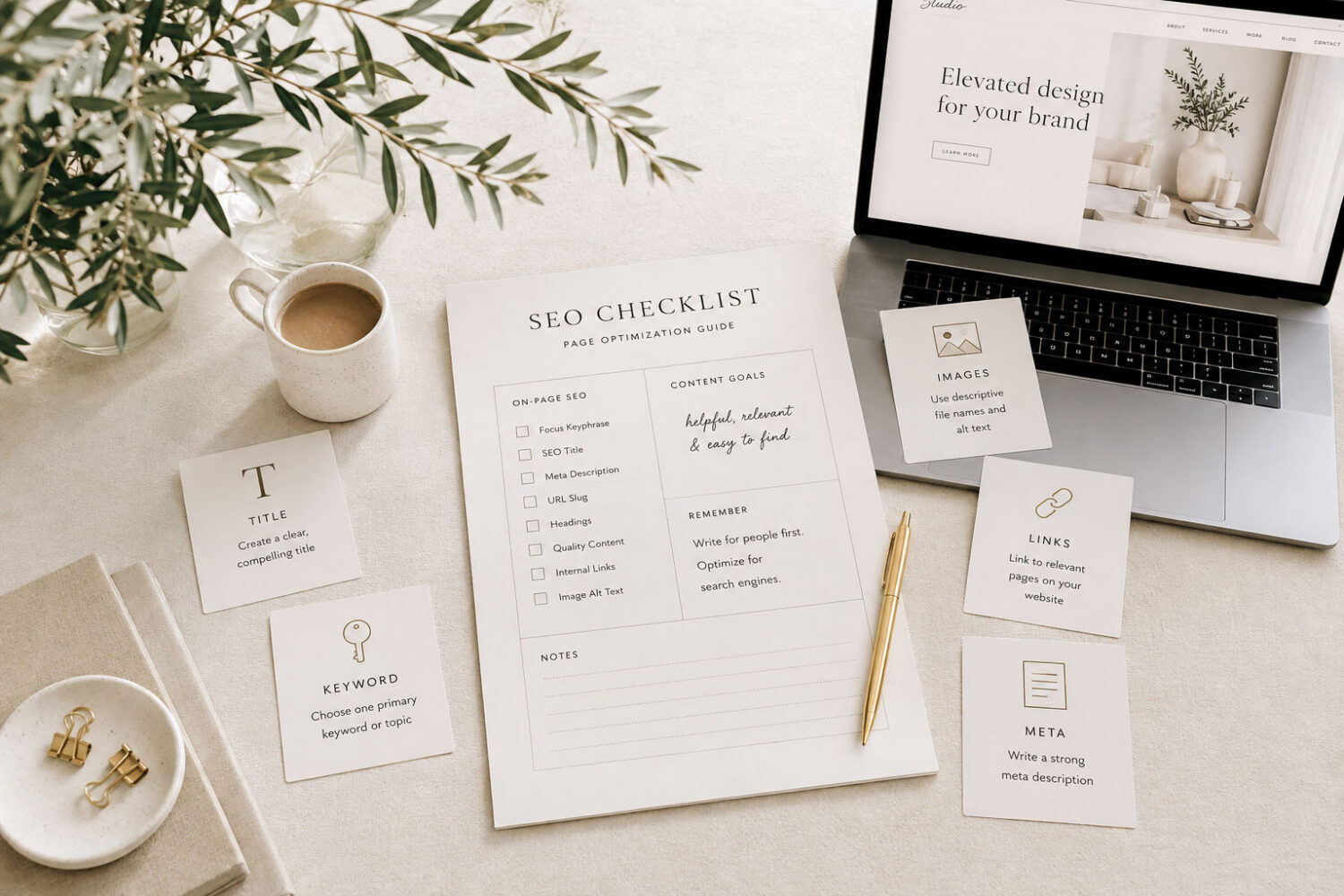
In This Article
01 Before You Start: What SEO Is + A Quick WordPress Check
02 Start Here: Install Yoast SEO
03 Choose What You Want the Page to Be Found For
04 Optimize the Page in WordPress
05 Fill Out Your Yoast SEO Settings
06 Optimize Your Images
07 Add Helpful Internal Links
08 What Should You Do on Each Type of Page?
09 Don’t Chase the Green Light
10 Your Simple SEO Checklist
01. Before You Start: What SEO Is + A Quick WordPress Check
START WITH THE BASICS
SEO stands for Search Engine Optimization. In simple terms, it’s the process of making your website easier for search engines like Google to understand—and easier for the right people to discover.
Imagine you’re a wedding photographer in Denver. Someone searches Google for “Denver wedding photographer.” Google needs to figure out which websites are relevant and which pages might be most helpful. Your page titles, headings, written content, images, links, and overall website structure all provide clues about what your website is about.
Good SEO simply makes those clues clearer. You’re not trying to trick Google or repeat the same keyword everywhere. You’re creating useful content for real people and organizing it in a way that both visitors and search engines can understand.
Before we start optimizing individual pages, though, there are a few basic WordPress settings worth checking once.
A Quick WordPress SEO Check
From your WordPress Dashboard, start with:
Settings → Permalinks
For most websites, I recommend choosing:
Post name
This creates clean URLs such as:
yourwebsite.com/how-to-choose-a-wordpress-theme/
instead of URLs filled with dates, numbers, or other unnecessary information.
Important: If your website has already been live for a while and you have existing pages or posts appearing in search results, don’t change your permalink structure without understanding how it will affect your existing URLs. Changing established URLs can create broken links unless they’re properly redirected.
Next, go to:
Settings → Reading
Look for:
Discourage search engines from indexing this site
Make sure this box is unchecked on a live website. This setting is sometimes turned on while a website is being built and accidentally left on after launch.
Finally, go to:
Settings → General
Make sure your Site Title accurately reflects your business or website name. Your tagline can also be updated here if you’re using one.
One last check: make sure WordPress and your plugins are up to date and that your website loads securely using HTTPS (you should see https:// at the beginning of your website address). Most modern WordPress hosts handle HTTPS for you, so this usually won’t require any additional setup.
That’s enough for now. There are plenty of additional technical SEO settings you can explore later, but you don’t need to understand all of them to start improving your website’s SEO.
Your one-time WordPress Checklist:
Once those basics are in place, we can move on to the part you’ll use regularly: optimizing your individual pages and posts.

Designer Insight:
Think of SEO as clarity, not trickery. You’re not trying to convince Google that your page is something it isn’t. You’re making it easier for both visitors and search engines to understand exactly what they’ll find there.
02. Start Here: Install Yoast SEO
A SIMPLE SEO TOOL FOR WORDPRESS
WordPress handles many of the basics, but an SEO plugin gives you one simple place to manage additional search settings for each page and post. That’s where Yoast SEO comes in.
For this guide, I recommend the free version of Yoast SEO. Once installed, Yoast adds SEO settings to your WordPress pages and posts where you can enter a focus keyphrase, customize your SEO title, write a meta description, and review suggestions for your content. You don’t need the Premium version to complete any of the basic SEO steps we’re covering here.
Getting Started
From your WordPress Dashboard, go to:
Plugins → Add New Plugin → Search “Yoast SEO” → Install → Activate
Yoast will guide you through its initial setup. Once that’s complete, its SEO settings will be available when you’re editing your pages and posts.
What About Kadence?
Kadence is what you’re using to design and structure your content inside WordPress. Yoast handles the additional SEO settings. They work alongside each other, and you don’t need Kadence Pro to follow this guide.

Designer tip:
Don’t install several SEO plugins at the same time. Choose one SEO plugin and use it consistently. For this guide, we’re using Yoast SEO.
03. Choose What You Want the Page to Be Found For
START WITH ONE CLEAR TOPIC
Before you open Yoast or worry about SEO scores, decide what the page is actually about. One of the easiest ways to do this is to finish this sentence:
I would love for this page to appear when someone searches for ___.
If you’re a photographer, your answer might be Charleston wedding photographer. An interior designer might choose interior designer in Nashville, while a blog article might focus on how to choose a WordPress theme. This gives you a primary topic for the page. In Yoast, you’ll see this referred to as your focus keyphrase.
Try to be specific. A phrase like photographer is extremely broad and doesn’t tell us much about the person, service, or location. Charleston family photographer communicates considerably more.
The same principle applies to blog posts. Rather than trying to optimize an article around the broad topic website design, an article might focus on how to choose colors for your website.
Does Every Page Need a Focus Keyphrase?
No. You don’t need to invent a keyphrase for every page just because Yoast gives you a field for one. Your Contact page doesn’t need to rank for “contact,” and your Privacy Policy doesn’t need an SEO strategy. Focus your attention on the pages and posts someone might realistically search for.
One page. One clear purpose. One primary topic.
04. Optimize the Page in WordPress
START WITH THE CONTENT PEOPLE ACTUALLY SEE
Before filling out anything in Yoast, work on the page itself. SEO starts with the content you’re creating—not the plugin.
Your page should have a clear title that tells visitors what they’ll find. When it makes sense, include your focus keyphrase or a natural variation of it in the title and near the beginning of the page. Don’t force it—the goal is simply to make the topic clear.
Organize longer content with clear headings so visitors can easily scan the page and understand its structure. When you’re using Kadence, choose heading levels based on the structure of your content rather than simply choosing an H2, H3, or H4 because you like its size. You can control how headings look without changing their purpose.
Think of your headings like an outline. Your H1 is the main title of the page and is typically used once. H2 headings divide the page into its main sections. H3 headings organize information within an H2 section, and H4 headings can break an H3 section down even further.
For example:
H1: SEO for Beginners: How to Optimize Your WordPress Website
H2: Optimize Your Images
H3: Write Helpful Alt Text
H4: Alt Text for Decorative Images
You don’t need to use every heading level on every page. The important thing is to keep the order logical rather than skipping levels simply because you prefer how another heading size looks.
Your URL should also be clear, concise, and easy to understand. WordPress usually creates it from your page title, but you can simplify it when necessary.
For example:
yourwebsite.com/how-to-choose-the-right-wordpress-theme-for-your-brand
could become:
yourwebsite.com/choose-wordpress-theme
Finally, write naturally about your primary topic. If you’re creating a page about Charleston wedding photography, you’ll probably mention Charleston, weddings, photography, your services, and related terms naturally throughout the page. You do not need to repeat the exact phrase “Charleston wedding photographer” in every heading and paragraph.
On the Page, Pay Attention To:
Common Mistake
Trying to add your exact focus keyphrase everywhere. If your content starts sounding unnatural because you’re forcing the same phrase into every heading and paragraph, you’ve gone too far. Your page still needs to be written for the person reading it.
05. Fill Out Your Yoast SEO Settings
FOUR THINGS TO LOOK FOR
Once the page itself is in good shape, open the Yoast SEO settings for that page or post.
You don’t need to understand every setting you see. For basic SEO, there are four things I want you to pay attention to.
1. Focus Keyphrase
This is the primary topic you chose earlier.
For example:
Charleston wedding photographer
or:
how to choose a WordPress theme
Yoast uses this phrase to analyze your content and offer suggestions. Entering it here does not tell Google, “Rank my website for this keyword.” It’s simply a tool Yoast uses to help evaluate your page.
2. SEO Title
Your SEO title is the title that can appear for your page in search results. It can be the same as your WordPress page title, or you can customize it when a slightly different version would be clearer or more helpful in search.
For example:
PAGE TITLE
How to Choose the Right WordPress Theme for Your Brand
SEO TITLE
How to Choose a WordPress Theme for Your Brand | Hello You Designs
Keep it descriptive and natural. Someone seeing only this title should have a good idea of what they’ll find when they click.
3. Slug
The slug is the final part of your page URL.
For example:
yourwebsite.com/wedding-photography
The wedding-photography portion is the slug.
Keep it short, readable, and relevant. You don’t need every word from your page title in the URL.
If the page or post is already published, avoid changing its slug unless you know how to redirect the old URL. For a new page or post, this is easiest to set before publishing.
4. Meta Description
Your meta description is a short summary of the page that search engines can use when displaying it in search results.
An easy formula is:
What the page is about + what the visitor will find + a reason to click.
For example:
Learn how to choose the right WordPress theme for your business, what features to look for, and how to find a design that fits your brand.
Write this for a real person deciding whether your page is worth clicking—not for a search engine.
Google may sometimes choose a different excerpt from your page when it better matches someone’s search, so don’t worry if your exact description isn’t always displayed.
Designer Tip:
Write for the person looking at the search result. Your SEO title and meta description should clearly tell them what they’ll find if they click. You don’t need to squeeze your keyphrase into every possible spot.
06. Optimize Your Images
A FEW SIMPLE HABITS MAKE A DIFFERENCE
Images are an important part of your website, and a little preparation before uploading them can improve both your website experience and the information available to search engines.
Start with the filename. Instead of uploading something called IMG_4837.jpg, rename it to something descriptive such as charleston-wedding-ceremony.jpg. Use a few words that describe the image, separated by hyphens. You don’t need to force your focus keyphrase into every filename—simply describe what the image shows.
You should also pay attention to image dimensions and file size. Uploading enormous images directly from a camera or stock photography website can slow your pages down. Resize images for the space where they’ll be used and compress them before uploading whenever possible.
You don’t need to make every image tiny. The goal is simply to avoid uploading a 4,000-pixel-wide image when your website will only display it at a fraction of that size.
Once the image is in WordPress, you’ll see a field for Alt Text. Alternative text describes meaningful visual information for visitors who can’t see the image, including people using screen readers. It can also help search engines understand the context of an image.
Write alt text by describing what someone would need to know about the image if they couldn’t see it. Keep it natural and specific.
For example:
Don’t use:
SEO website WordPress SEO small business SEO
Use:WordPress editor displaying a small business homepage
Alt text isn’t a hidden place to put keywords. If your focus keyphrase naturally belongs in the description, that’s fine—but don’t add it just for SEO. And if an image is purely decorative and doesn’t add meaningful information, it generally doesn’t need descriptive alt text.
Before You Upload an Image:
Designer Tip:
Write alt text for the person who can’t see the image—not for an SEO score. That’s one of the easiest ways to know whether you’re doing it correctly.
07. Add Helpful Internal Links
CONNECT RELATED CONTENT
Internal linking sounds technical, but you’ve probably already done it without realizing it.
An internal link is simply a link from one page on your website to another page on the same website. If you’re writing an article about SEO and mention the pages a business website should have, you might link readers to The Essential Pages Every Business Website Needs. Someone who wants to learn more can continue to that article without having to search for it themselves.
These links help visitors continue exploring topics they’re interested in, while also helping search engines understand how the content across your website relates.
You don’t need dozens of links on every page. Add them when they genuinely help.
The words you make clickable matter too. Instead of vague phrases like click here or read more, link descriptive words that tell someone what they’ll find, such as learn how to choose the right WordPress theme.
Common Mistake
Publishing a new article and never connecting it to anything else on your website. When you create something new, look for a few natural opportunities to link to relevant pages or posts—and consider whether an older article should now link to your new one too.
08. What Should You Do on Each Type of Page?
NOT EVERY PAGE NEEDS THE SAME SEO STRATEGY
You don’t need to optimize every page on your website exactly the same way. Different pages have different purposes, and some deserve much more SEO attention than others. Here’s a simple way to approach the most common pages on your WordPress website.
Homepage
Give your Homepage a clear overall focus around what your business does and who it serves. If your business serves a specific location, include that naturally as well. Your page title, main heading, introductory copy, SEO title, and meta description should all make the purpose of your website easy to understand.
Example of a clear homepage focus:
Wedding & Family Photographer in Charleston, South Carolina
About Page
Your About page is primarily about building trust, so you don’t need to force a keyword into it. Instead, naturally communicate who you are, what you do, who you help, and any experience or expertise that helps visitors understand your business. Give the page a clear SEO title and meta description, but write the actual content for the person who wants to learn more about you.
Services Page
Use clear language to describe the services people are actually looking for. Rather than relying only on creative service names, make sure visitors can quickly understand what you offer. If you have several substantial services, consider giving important services their own pages so you have room to explain each one properly.
For example, Wedding Photography communicates far more than a package named The Heirloom Experience by itself.
Shop & Product Pages
Use clear product names and helpful descriptions. Don’t rely entirely on photographs to communicate what you’re selling. Give shoppers—and search engines—enough written information to understand the product, and use descriptive image filenames and alt text where appropriate.
Blog Posts
Give each article one clear topic or question. Think about what your audience is searching for, struggling with, comparing, or trying to learn rather than simply choosing a broad topic.
For example:
Instead of: My Favorite Things About Charleston
Try: 10 Things to Do in Charleston on a Weekend Trip
You can still bring your personality and experience into the article. You’re simply giving it a clearer search purpose.
Contact & Legal Pages
Some pages exist primarily because your visitors need them—not because you expect people to discover them through Google. Your Contact page should still have a clear title and basic search information, but it usually doesn’t need its own focus keyphrase. Privacy Policies, Terms, Checkout, Thank You pages, and similar utility pages generally don’t need an elaborate SEO strategy either. Keep them clear, useful, and easy for visitors to navigate.
CONTINUE READING
Not sure which pages your website actually needs?
Read Next: The Essential Pages Every Business Website Needs (and Why They Matter) →
09. Don’t Chase the Green Light
YOAST IS A GUIDE—NOT GOOGLE
Once you enter your focus keyphrase, Yoast analyzes the page and gives you recommendations. You’ll see green, orange, and red indicators showing you which areas look good and which ones may need attention.
These can be useful. Yoast might remind you that you haven’t added internal links, that your SEO title could be improved, or that your focus keyphrase isn’t reflected clearly enough in the content.
But you do not need every Yoast indicator to be green.
A green score doesn’t guarantee that you’ll rank on Google, and an orange or red indicator doesn’t automatically mean you’ve done something wrong. Yoast is using a set of guidelines to analyze your content—it isn’t Google’s ranking system.
Use the recommendations to catch things you may have overlooked, but don’t rewrite good content into awkward sentences simply to satisfy the plugin. The same applies to Yoast’s readability suggestions. They’re helpful prompts, not rules your writing has to obey.
Designer Tip:
Yoast is your checklist—not your copywriter. If you’ve created useful content, made the topic clear, filled out your basic SEO information, and the page reads naturally, don’t let one orange circle keep you from publishing.
10. Your Simple SEO Checklist
BEFORE YOU HIT PUBLISH
Your Page:
YOAST:
Images:
Links:
One Last Question:
If the answer is yes, publish it.
You can always improve and update your SEO later. Building a useful website consistently is far more valuable than leaving good content unpublished because you’re waiting for every SEO detail to be perfect.
You don’t need to master SEO before you can start doing SEO well.
Key Takeaways ✓
Build a Website Worth Finding
Good SEO helps people discover your website. A thoughtful design helps them trust what they find. Start with a WordPress theme designed to give your content a beautiful, flexible foundation.
Some Common Design Questions
Still have questions? Here are a few quick answers to some of the most common questions about this topic.